News for hackers. Stuff that matters.
Re:macOS screenshot tricks to impress your co-workers by susam on Thursday June 16, 2022 @05:05PM (#31770964)
Here is a key sequence I use very often. It takes a screenshot of a chosen window without the window's shadow.

- First, type command + shift + 4 (the mouse pointer turns into crosshair).

- Then type the space bar (the crosshair turns into a camera icon).

- Hover the mouse pointer (a camera icon now), to highlight the chosen window.

- Finally, hold the option key and click.

This sounds like a lot of steps but it becomes muscle memory pretty quickly.

Re:macOS screenshot tricks to impress your co-workers by Hammershaft on Thursday June 16, 2022 @08:52PM (#31772837)
I think Mac OS has the most inaccessible hidden hotkey shortcuts out of every OS I've used. Even essential functions like showing hidden files in a directory is uniquely done through an hidden shortcut in Mac OS.
Re:macOS screenshot tricks to impress your co-workers by SOLAR_FIELDS on Thursday June 16, 2022 @09:41PM (#31773153)
Perhaps, but the aforementioned screenshot shortcut I learned just like OP because I wanted to take a screenshot, and it's muscle memory for me as well. I even thought to myself before I clicked on the article "I'm pretty sure they are going to have CMD + Shift + 4 or CMD + Shift + 5 as the focal point of the article". I would call it "inaccessible" in terms of natural discovery, sure. But it is definitely not "inaccessible" in terms of ease of use and memory when you do know about it. I had to google "how to screenshot on mac" once in my life and I've used the keyboard shortcuts on a near daily basis for more than half a decade.
Re:macOS screenshot tricks to impress your co-workers by MiddleEndian on Thursday June 16, 2022 @09:46PM (#31773192)
Some of them are obscure but there's a big list of them somewhere in System Preferences and you can change them. You can also change keyboard shortcuts in your programs too. Definitely something I miss from Mac OS X.
Re:macOS screenshot tricks to impress your co-workers by FabHK on Friday June 17, 2022 @02:20AM (#31774684)
> essential functions like showing hidden files in a directory

How is that an essential function? My mom has never needed it in 20 years of using Macs. And when I want to know about hidden files, I pop open a terminal and ls -la.

Re:macOS screenshot tricks to impress your co-workers by diffeomorphism on Friday June 17, 2022 @02:40AM (#31774811)
That is kind of hilarious: This GUI feature is very undiscoverable. No, no, "just" open a terminal instead and type this.
Re:macOS screenshot tricks to impress your co-workers by jen729w on Friday June 17, 2022 @02:55AM (#31774922)
The entire point of these hidden files is that the user should never see them. Otherwise they’ll think, what’s this nonsense?, and delete them.

It should be difficult to see hidden files. And it is!

Re:macOS screenshot tricks to impress your co-workers by FabHK on Friday June 17, 2022 @03:02AM (#31774965)
Precisely. Just as the "Go" menu in the Finder doesn't contain the Library folder, because the user generally doesn't need it. As an advanced user, you can pop open a Terminal and `open Library`, or you use a shortcut: press Option while in the Go menu.
Re:macOS screenshot tricks to impress your co-workers by falsaberN1 on Friday June 17, 2022 @06:48PM (#31785448)
MacOS is good because I have to open the terminal to do complex tasks. Linux is crap because I have to open the terminal to do complex tasks.

I know the devil is in the details, I'm just poking fun at the thing, but you gotta admit it's kind of funny.

Re:macOS screenshot tricks to impress your co-workers by leviathant on Friday June 17, 2022 @10:45AM (#31778969)
As a lifetime Windows user who started using Macs for the day job about a decade ago, it was clear that Windows came from a keyboard-oriented background, and Macs come from a legacy of focusing on doing as much with a mouse as possible.

I have a lot of internal thoughts about why I like what I grew up with (particularly with respect to discoverable keyboard shortcuts), but it's just not worth the mental energy of exploring that with internet strangers. The bottom line for me is that a decade on, I still split it between a Macbook for work, Windows desktop for home/creative/gaming, and if I could reasonably work without MacOS I would, but I can't.

Re:macOS screenshot tricks to impress your co-workers by ziml77 on Friday June 17, 2022 @04:35AM (#31775565)
Just hours ago complained to a friend about how arcane some things in macOS are. Short of just pressing random key combinations, there is no way to discover that it's possible to paste/type a path into the standard file selection dialog.

(It's cmd-shift-g to get the text entry to appear, or simply forward slash to get it to appear with the slash already entered. Also, it says "Go to Folder", but if you direct it to a file, it will navigate to the folder the file is in and also select the file)

Re:macOS screenshot tricks to impress your co-workers by pseudalopex on Saturday June 18, 2022 @12:41AM (#31787310)
The file selection dialog looks like a Finder window. It could be more discoverable. But trying what works in Finder isn't random key combinations.
Re:macOS screenshot tricks to impress your co-workers by Hammershaft on Friday June 17, 2022 @02:07PM (#31782030)
I learned I could do this for the first time reading your post.
Re:macOS screenshot tricks to impress your co-workers by tchvil on Friday June 17, 2022 @12:53AM (#31774258)
If all features had their menu or button visible, that would make the interface more complex. Maybe they consider this as advanced features, that advanced users will find out anyway.
Re:macOS screenshot tricks to impress your co-workers by ASalazarMX on Friday June 17, 2022 @11:56AM (#31780108)
Your comment is somehow weird in this publication, because the article assumes (and many comments corroborate) that advanced users are not advanced enough to know all the hidden UI of the screenshot feature.
Re:macOS screenshot tricks to impress your co-workers by tokamak-teapot on Friday June 17, 2022 @03:09AM (#31775008)
Seeing as you and I both know the shortcut, how is it inaccessible or hidden? Just because it’s not there cluttering up the visual interface doesn’t mean it’s hidden. For anyone who thinks they might want it, they can find it. For anyone else, they’ll never see it. Seems about right to me.
Re:macOS screenshot tricks to impress your co-workers by happymellon on Friday June 17, 2022 @03:20AM (#31775092)
Be sure how would I even know this is a thing to Google unless I see tip lists like this?

If there was a MacOS shortcut list, grouped by category so that when I want to do something I can search if it is possible without installing a utility, that would be awesome.

Re:macOS screenshot tricks to impress your co-workers by wil421 on Friday June 17, 2022 @06:36AM (#31776289)
Have you tried to google it? It’s the first result.

https://support.apple.com/en-us/HT201236

Screenshot shortcuts and functions are here.

https://support.apple.com/guide/mac-help/take-a-screenshot-o...

Re:macOS screenshot tricks to impress your co-workers by happymellon on Friday June 17, 2022 @09:48AM (#31778091)
So that first page doesn't actually have the shortcut, it has a link to another page that contains the shortcut.

Secondly, it doesn't have the details on capturing without a shadow in an easy to read format.

Re:macOS screenshot tricks to impress your co-workers by wil421 on Friday June 17, 2022 @10:08AM (#31778402)
Apple has only recently created the fancy screenshot utility. It used to only be 3-5 shortcuts for screenshots since I switched to Macs about 15 years ago.
Re:macOS screenshot tricks to impress your co-workers by ASalazarMX on Friday June 17, 2022 @11:59AM (#31780155)
Sweet irony:

"Apple's UI is not discoverable or even obvious."

"Just use Apple's biggest competitor to find them!"

Re:macOS screenshot tricks to impress your co-workers by hackernewds on Friday June 17, 2022 @03:13AM (#31775038)
I do not know this shortcut. Further, I do not what shortcuts I do not know about.
Re:macOS screenshot tricks to impress your co-workers by Hammershaft on Friday June 17, 2022 @01:57PM (#31781891)
Probably the most succinct unintentional definition of poor discoverability in a UI I have seen.
Re:macOS screenshot tricks to impress your co-workers by tokamak-teapot on Friday June 17, 2022 @01:36PM (#31781571)
If you were keen on the idea of finding some shortcuts, you would buy a book or search for docs or something though, right?
Re:macOS screenshot tricks to impress your co-workers by bmitc on Friday June 17, 2022 @01:58AM (#31774557)
I fully agree. macOS is a nightmare of usability.

For showing hidden files and file extensions, there's a Terminal command you can run to permanently set it for every file. Of course, since it's only exposed through some command line utility, I forgot what it was and would have to search again.

Re:macOS screenshot tricks to impress your co-workers by PUSH_AX on Friday June 17, 2022 @03:57AM (#31775341)
“Usability nightmare” is objectively a bit of a stretch.

The example given isn’t really something most users need. Even when I did need to do that the answer was discovered and executed within 20 seconds of googling. This is the same for other things most people don’t need across all the prevalent OSes

Re:macOS screenshot tricks to impress your co-workers by bmitc on Friday June 17, 2022 @11:53AM (#31780032)
Well I disagree, so I don’t think it’s objective. Another goodie is when installing an update, macOS only shows that you can cancel the update if you hover over the progress bar or where the cancel X would be. If you just look at the window, you think there’s no way to cancel and that you need to ride it out. You just have to happen to hover over the right element. There’s no reason for this. macOS is absolutely full of little things like this that are hidden in the OS. iOS does this as well. Going to the settings screen, you gotta pull down to see that there’s a search bar. Again no reason for that. Both macOS and iOS are very inconsistent and hide all sorts of settings, behaviors, etc. Another example is that I can’t even adjust my external monitor’s volume and brightness from the OS because Apple wants you to buy their monitors. And all that’s ignoring the portion of usability from things in the OS just not working or that break.
Re:macOS screenshot tricks to impress your co-workers by Crazor on Friday June 17, 2022 @03:43PM (#31783292)
There is a really compelling reason on iOS: saving screen real estate. And the top-hidden search bar is convention now, just like the pull-to-refresh gesture. Discoverability is an issue though, I agree. But unnecessarily hidden? Disagree.

As for the monitor, just install Monitor Control: https://github.com/MonitorControl/MonitorControl

Re:macOS screenshot tricks to impress your co-workers by alin23 on Friday June 17, 2022 @04:18PM (#31783722)
Or Lunar if you want more automated adaptive brightness than what MonitorControl offers: https://lunar.fyi
Re:macOS screenshot tricks to impress your co-workers by keybits on Friday June 17, 2022 @02:46AM (#31774856)
cmd + shift + . (that's a dot / period / full stop with cmd and shift) is the built in shortcut in Finder to toggle hidden files. Easy to remember as hidden files start with a dot.
Re:macOS screenshot tricks to impress your co-workers by corney91 on Friday June 17, 2022 @04:07AM (#31775401)
The dot might be easy to remember, but the cmd+shift bit isn't for me. Mac shortcuts can be cmd+shift, or ctrl+shift, or ctrl+cmd, or just cmd, or sometimes there's an opt in there as well.

After using a Macbook for work for 4 years, I still have no intuitive idea which modifier keys should be used when, it seems to be random.

Re:macOS screenshot tricks to impress your co-workers by BurningFrog on Friday June 17, 2022 @12:02AM (#31773995)
Features the typical user can't access/discover are wasted development effort.

So sad...

Re:macOS screenshot tricks to impress your co-workers by doctor_eval on Friday June 17, 2022 @12:11AM (#31774044)
Most of the time Mac shortcuts also come with a more discoverable approach. I’m not at my desktop atm, but isn’t there also the “grab” application for taking screenshots?
Re:macOS screenshot tricks to impress your co-workers by hutattedonmyarm on Friday June 17, 2022 @01:33AM (#31774439)
> Even essential functions like showing hidden files in a directory is uniquely done through an hidden shortcut in Mac OS.

I'm fairly certain, it's in the menu bar too

Re:macOS screenshot tricks to impress your co-workers by Crazor on Friday June 17, 2022 @03:48PM (#31783347)
Or is it? I can’t even find it with the search box in the help menu. FWIW, I didn’t know that shortcut before today, and I consider myself a well-versed Mac user since the intel switch
Re:macOS screenshot tricks to impress your co-workers by hutattedonmyarm on Saturday June 18, 2022 @12:13AM (#31787210)
Huh, you’re right it’s not. My FTP client does expose it, maybe that’s what I had in mind
Re:macOS screenshot tricks to impress your co-workers by ledauphin on Thursday June 16, 2022 @09:09PM (#31772935)
I have to look this one up every few months. just rare enough that it won't stay in long term memory.
Re:macOS screenshot tricks to impress your co-workers by bradknowles on Saturday June 18, 2022 @10:06PM (#31795482)
Yeah, that's the other problem. And I just don't want to be bothered.
Re:macOS screenshot tricks to impress your co-workers by lawgimenez on Thursday June 16, 2022 @09:39PM (#31773137)
There should be a compilation of every hidden tricks and shortcuts.
Re:macOS screenshot tricks to impress your co-workers by Smoosh on Thursday June 16, 2022 @10:24PM (#31773463)
Perhaps this will help: https://support.apple.com/en-au/HT201236

Of course, this can only cover Apple's own software and 3rd party software which adheres to Apple conventions.

Re:macOS screenshot tricks to impress your co-workers by suction on Friday June 17, 2022 @02:45AM (#31774846)
They're not "hidden" when you know them.
Re:macOS screenshot tricks to impress your co-workers by rootusrootus on Thursday June 16, 2022 @05:21PM (#31771123)
Man, you guys are changing my life. LOL. I knew about cmd-shift-4 (and the ctrl version), but I never knew about hitting spacebar to make it do a window.
Re:macOS screenshot tricks to impress your co-workers by baggiponte on Friday June 17, 2022 @03:09AM (#31775010)
yeah that's a neat trick. of course you can do that with cmd-shift-5 too
Re:macOS screenshot tricks to impress your co-workers by hoten on Thursday June 16, 2022 @05:24PM (#31771149)
FYI, Cmd + Shift + 5 encapsulates all the various options into one UI.
Re:macOS screenshot tricks to impress your co-workers by alx__ on Thursday June 16, 2022 @06:27PM (#31771768)
Cmd + Shift + 5 will also give you access to some of options (as noted in the article)

Then let you adjust the selection area in relaxed way

I always make sure to enable "Remember Last Selection", which is great when you're taking repeated screenshots of the same area. Once you've created the selection area you'll get exact sizes every time.

Re:macOS screenshot tricks to impress your co-workers by TurkTurkleton on Thursday June 16, 2022 @07:51PM (#31772394)
And you can press space to toggle between taking a screenshot of an area or of an entire window.
Re:macOS screenshot tricks to impress your co-workers by yieldcrv on Thursday June 16, 2022 @05:48PM (#31771401)
and adds screen recording functionality as a video
Re:macOS screenshot tricks to impress your co-workers by sircastor on Thursday June 16, 2022 @06:03PM (#31771572)
I’ve been using this to visually demonstrate features in pull requests. Combined with Gifski for gifs, it’s really nice.
Re:macOS screenshot tricks to impress your co-workers by mikewhy on Thursday June 16, 2022 @07:13PM (#31772148)
Gitlab and GitHub both let you upload videos (and probably more). I still use ffmpeg to convert .mov to .mp4 to get a better file size. But either run circles around the quality and size of .gif
Re:macOS screenshot tricks to impress your co-workers by zmmmmm on Thursday June 16, 2022 @09:44PM (#31773178)
do they show them inline and play automatically?

the thing I love about gifs is that they play automatically so as soon as you open the issue you are seeing the animation of what the problem is.

Re:macOS screenshot tricks to impress your co-workers by mikewhy on Friday June 17, 2022 @12:16PM (#31780415)
They are shown inline but they don't play automatically. But they do let the reviewer pause and rewind to see something they've missed, rather than sit there and wait to hopefully catch what they missed.
Re:macOS screenshot tricks to impress your co-workers by rpmisms on Thursday June 16, 2022 @09:24PM (#31773032)
I'm usually committing visual changes for reviewers without easy access to the environment, so I mark up the screenshots in my PRs. It's great
Re:macOS screenshot tricks to impress your co-workers by behnamoh on Thursday June 16, 2022 @06:42PM (#31771910)
I used to use Kap for that to convert video to gif afterwards, but this just gives me one less app to use!

    brew uninstall kap
Re:macOS screenshot tricks to impress your co-workers by davidwritesbugs on Friday June 17, 2022 @03:30AM (#31775159)
If only it grabbed the audio too. Would have been a lifesaver. All the apps that do this (that I found) are cr*p or super pricey.
Re:macOS screenshot tricks to impress your co-workers by yieldcrv on Friday June 17, 2022 @05:01AM (#31775745)
Quicktime Player has audio in the grab

I feel like the screengrab ui also has it too

Re:macOS screenshot tricks to impress your co-workers by mcintyre1994 on Friday June 17, 2022 @02:45AM (#31774848)
Oh that’s cool! I always use QuickTime Player for that, something in the screenshot UI makes more sense
Re:macOS screenshot tricks to impress your co-workers by behnamoh on Thursday June 16, 2022 @06:46PM (#31771943)
Yeah but it's nice to just press keys instead of point and click with CMD-SHIFT-5 options.
Re:macOS screenshot tricks to impress your co-workers by throw0101a on Thursday June 16, 2022 @09:00PM (#31772880)
Cmd+space, "screenshot".
Re:macOS screenshot tricks to impress your co-workers by giantrobot on Thursday June 16, 2022 @06:00PM (#31771528)
Add in the control key in the shortcut above and the screenshot will go to the clipboard instead of a file. Useful for pasting a screenshot into something like Messages or Slack.

Also there's no need to hold down Option when clicking. You can however hit Esc to cancel the screenshot action.

Re:macOS screenshot tricks to impress your co-workers by usehackernews on Thursday June 16, 2022 @06:23PM (#31771745)
I just tested it -

Holding option seems to remove the gradient shadow of the application window in the screenshot. Not needed, but it’s better in my opinion.

Re:macOS screenshot tricks to impress your co-workers by jagged-chisel on Thursday June 16, 2022 @09:20PM (#31773009)
I didn't lose the shadow when doing this. There's a setting ...

`defaults write com.apple.screencapture disable-shadow true`

Have you ever run that? Presumably changing to false gets you the shadow again.

Re:macOS screenshot tricks to impress your co-workers by clairity on Thursday June 16, 2022 @10:06PM (#31773344)
after copying to clipboard, you can also paste it into an empty preview window by hitting ctrl-N (with preview in the foreground). you can paste additional clippings from the clipboard as impromptu layers that you can drag around on top of the first image.

in this way, folks (e.g., product managers) can quickly compose a mockup using components from a pre-existing UI without opening up photoshop/pixelmator/affinity.

Re:macOS screenshot tricks to impress your co-workers by LexGray on Friday June 17, 2022 @04:38AM (#31775585)
Another option is when you press Command+Shift+5 select Options. From there select to Open in Preview. From then on any screenshot will open in preview automatically.
Re:macOS screenshot tricks to impress your co-workers by hibbelig on Friday June 17, 2022 @06:42AM (#31776326)
After hitting space to go to select window mode, click select the window and its shadow, option click select the window without its shadow. Not sure why you say the option key is not needed.
Re:macOS screenshot tricks to impress your co-workers by keyle on Thursday June 16, 2022 @08:42PM (#31772762)
You've just saved me years of my life. I can't believe I didn't know this.
Re:macOS screenshot tricks to impress your co-workers by behnamoh on Thursday June 16, 2022 @06:44PM (#31771927)
Dang, these little tricks are so useful!

Combination of CTRL+OPTION works too.

Re:macOS screenshot tricks to impress your co-workers by diffeomorphism on Friday June 17, 2022 @02:45AM (#31774845)
Just for comparison:

https://userbase.kde.org/images.userbase/4/4c/Spectacledefau...
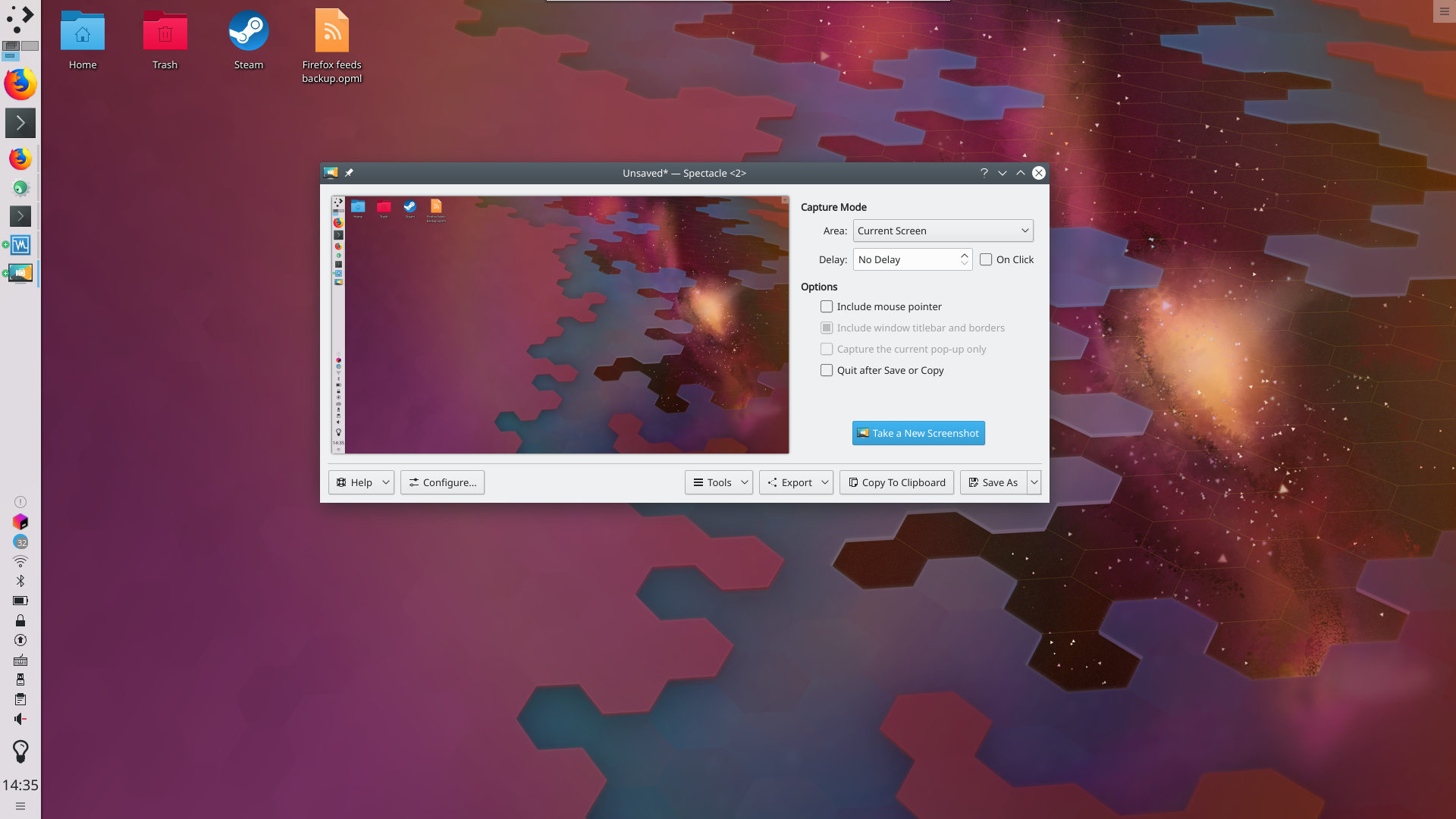
The default kde screenshot app just has simple dropdown menus for all that. Is command+$, space, option+click really better than PrtScr, click?
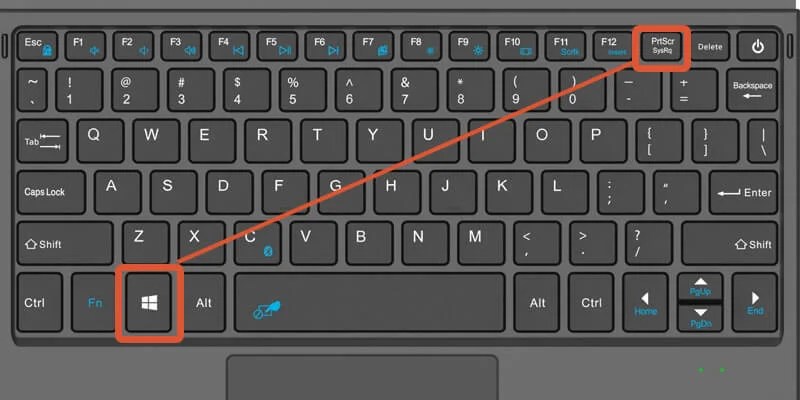
Re:macOS screenshot tricks to impress your co-workers by neuronic on Friday June 17, 2022 @05:44AM (#31776012)
Please show me the PrtScr key on a laptop 60% keyboard.
Re:macOS screenshot tricks to impress your co-workers by diffeomorphism on Friday June 17, 2022 @06:05AM (#31776119)
https://i0.wp.com/accatech.com/wp-content/uploads/Screenshot...

It is the key with PrtScr written on it. Also, it is impressive by what a wide margin you missed the point.

Re:macOS screenshot tricks to impress your co-workers by faitswulff on Thursday June 16, 2022 @06:24PM (#31771747)
I just figured out that these generate really nice transparent borders, which they use to add shadows. They look great when you put them in, e.g., Notion docs.
Re:macOS screenshot tricks to impress your co-workers by behnamoh on Thursday June 16, 2022 @06:57PM (#31772045)
You can change the Screenshots icon to something else too. Mine looks like this:

https://i.postimg.cc/zX5f4fqN/1.png

Makes it easier to find visually.

Re:macOS screenshot tricks to impress your co-workers by gouggoug on Thursday June 16, 2022 @07:35PM (#31772296)
How do you do that? I was trying to find the way to do that the other day but couldn't figure it out.

Edit: Of course I was 1 google search away from the answer: https://support.apple.com/guide/mac-help/change-icons-for-fi...

Re:macOS screenshot tricks to impress your co-workers by pishpash on Thursday June 16, 2022 @05:51PM (#31771437)
What does holding option do?
Re:macOS screenshot tricks to impress your co-workers by dopamean on Thursday June 16, 2022 @05:59PM (#31771509)
I think that's the part that removes the shadow.
Re:macOS screenshot tricks to impress your co-workers by oblosys on Thursday June 16, 2022 @05:58PM (#31771498)
It removes the shadow around the window.
Re:macOS screenshot tricks to impress your co-workers by bradknowles on Saturday June 18, 2022 @09:56PM (#31795439)
You know, I'm looking at all the tips and suggestions here, and my thoughts keep going back to SnagIt from TechSmith -- these problems seem to all just go away with SnagIt.

Sure, it's cross platform, but I don't care about that. It works better for me on macOS than the native facilities, and provides much better post-screenshot editing.

If I want to do video capture, the industry gold standard here is Camtasia, also from TechSmith.

I know the standard provided functionality, and I just don't want to be bothered.

Re:macOS screenshot tricks to impress your co-workers by jagged-chisel on Thursday June 16, 2022 @09:17PM (#31772992)
What does the option key do in this case? I'm familiar with all the other steps, but the option key's purpose eludes me.
Re:macOS screenshot tricks to impress your co-workers by zeroimpl on Thursday June 16, 2022 @10:30PM (#31773509)
Apparently it hides the shadows when you screenshot an individual window. Neat trick, although I think I'm going to apply the trick from the article, since I don't think I ever actually want the shadows.
Re:macOS screenshot tricks to impress your co-workers by al_borland on Thursday June 16, 2022 @11:33PM (#31773836)
I think the shadows look better when adding the screenshots into a document, but are a little much when sending a screenshot to someone via chat.
Re:macOS screenshot tricks to impress your co-workers by youngtaff on Thursday June 16, 2022 @11:37PM (#31773859)
I tend to prefer to add the shadow in the doc itself rather than have it as part of the image
Re:macOS screenshot tricks to impress your co-workers by Smoosh on Thursday June 16, 2022 @10:25PM (#31773478)
It captures the window without the drop shadow.
Re:macOS screenshot tricks to impress your co-workers by jarek83 on Friday June 24, 2022 @05:15AM (#31859398)
Nice one. I found that it only takes a separate window on the mac screen, but when I want to do it on additional display, it does not allow me to select a window - it highlights all the screen as a window.
Re:macOS screenshot tricks to impress your co-workers by yieldcrv on Thursday June 16, 2022 @05:49PM (#31771410)
> - Hover the mouse pointer (a camera icon now), to highlight the chosen window.

bruh, what, god tier shortcut here

Re:macOS screenshot tricks to impress your co-workers by max23_ on Thursday June 16, 2022 @09:08PM (#31772928)
Wow thanks! Never knew about pressing the spacebar to toggle to window capture mode.
