I guess that could just be my sight, but the reviews for the XPS laptop vs the 4k model of the same were pretty much unanimous on the 4k variant being a waste of battery for a neglible return on image quality, so it's at least not a fringe view
I have a ThinkPad, and this has been my experience. Sitting next to my Macbook Pro 13" retina, there is not much difference. 14" 16:9 1080p vs. 13" 16:10 1600p. The matte finish + slight diagonal increase closes the gap between the two. Unless you're in your 20s with perfect vision, I doubt the average person could tell a visual difference between the two.
I will also say that at 13", the difference between 16:9 and 16:10 is practically nonexistent. Especially 14" vs 13". I thought this would be a major issue for me. But it's not. On a 27" desktop monitor? Sure, that can make a difference.
Both laptops are 15".
Yep. What's getting lost in this whole discussion over resolution and whether >1080p is necessary is the issue of panel quality. Most laptops have always had absolute shit that is useless for photo editing or color-accurate work. Even at the high end they rarely advertise things like gamut coverage.
I absolutely hate viewing text on my LO-DPI PC vs my 6 year old HD-DPI Macbook Pro or either my 4 year old android smartphone or my 1 year old iPhone or my 7 year old iPad. It's like playing a NES game vs a PS4 Game. Sure some are fun and it's nostalgic but the world as moved on and lo-res is old.
This is exactly what the product people who are building blazing fast, high spec laptops with top-of-the-line circa 2006 displays need to hear.
But support for 1440p on Linux (and as far as I know not just Linux) is crap.
Anyway in my experience having a high quality display is much much much more important then the display resolution (as long as it's at least 1080p).
Sure some wayland implementations do support fractional scaling but only in a way which leads to not so crisp fonts and images (scaling by 2 and then down scaling the pixel output to the given 1.x scaling factor), which defeats the whole point of getting a higher resolution screen.
Sure if your 1440p screen is also size wise bigger this might not matter but then my argument was always about increasing resolution without increasing monitor size. E.g. like a 1440p14" Laptop or similar.
Also a perfect size scaling on a 1440p14" to make the UI be the same size as on a 1080p14" monitor is technically impossible, through there are ways to get solutions which are good enough anyway (but not scaling to exactly the same size but something close by, separately for each font and other elements in a UI).
And while X impl. might work better, lets be honest X is dead. Still used, sure, but dead anyway.
It is
1080p to 4k is such a large difference
Perfect vision is usually understood to be the ability to discern details of about 1/60 of a degree, or 0.29 milliradians. By the arc length formula (s=rθ), we find that the distance needed to precisely align this angle with the level of detail provided by a 1080p screen is about 20 inches.
In other words, if you sit closer than 20 inches away from your screen (perhaps not that unlikely for a laptop), you might be able to discern details beyond the 1080p level. This would only be possible for extremely contrast sensitive small details, like text in a small font size at 1:1 (no DPI scaling).
So... it's a bit complicated, but I suspect 1080p would be good enough for nearly everyone at 13 inches, but move up to 15 inches and I could see many people preferring 1440p.
High DPI screens are able to render text without aliasing, and that makes a significant difference, especially with less-than-perfect eyesight.
What you're saying is true insofar as I had to squint up to a 1080p screen at 13" to actually see the pixels. But everything was slightly blurry, and switching to a "Retina" (1600p iirc) screen fixed that.
Which was the lack of subpixel aliasing: you can make those screens look blurry as well, by turning it back on. But a 1080 without it just looks like it has janky text rendering.
An actual 4K screen is unnecessary at 13", imho, but the extra pixels are harmless except in battery life. I do detect a real difference in textual rendering between 170ppi and 227, because it's the difference between leaning on subpixel aliasing and turning it off while still getting good results.
First of all the cone spacing in the fovea is around 31arcsec or about half the arcmin you assume. IMO that is more relevant than the 20/20 vision number because that number is not based on any intrinsic quantisation of the visual system but rather mostly limited by blur which tends to be very much not gausian -> not an ideal low pass filter for most eyes.
Now consider the nyquist shannon sampling theorem that tells us that any signal we want to fully capture needs to be sampled at at least twice the frequency of the highest frequency of interest. So if we want to be able to fully represent any state of our visual system on a display we need at least twice the resolution of our visual system (ignoring for a minute that that assumes an ideal lpf which your eye is not as stated above). so already 4x your 1arcmin resolution number.
But that all quickly becomes rather theoretical when you look at jagged elephant in the room: aliasing and scaling! a lot of what we look at is either rendered with pixel precision being very prone to aliasing at scales that are much much larger than your pixel pitch (see this worst case demonstration https://www.testufo.com/aliasing-visibility) or image or video files that might be displayed at a size that isn't an integer multiple or fraction of its native resolution. scaling just like aliasing causes artifacts that go way beyond the scale of your pixel pitch and one way to mitigate the issue is to just have a very high target resolution to scale too. So yeah I don't thing "can't distinguish individual pixels" is a meaningful threshold and even way beyond that there is still benefit to be had even for those with less than perfect eyesight
Especially with Chinese/Japanese characters, these can sometimes become unreadable on smaller fonts on 1080p.
I have two 14” Thinkpads I switch between which have almost identical setups, but one is 1080p and one is 1440. I’m not buying another 1080p if I can avoid it. And yes I have been tweaking fonts and X11 quite a bit already.
Once you see and appreciate the difference, you can’t unsee it. Anything less is jarring.
Print media figured out three to four decades ago that print buyers prefer at least 144 lpi for black shapes, at least 300-600 dpi for grey images, and minimally 300 dpi but ideally 1200 dpi for colour photos people will consider high quality. (Note: For reader convenience I’m mixing lines per inch or lpi with dots per inch or dpi here, lines is per screen but there may be several screens per image, so dpi is the source material you’re trying to reproduce with screens.)
We’ve been settling on computer screen quality for too long. If all we did was video, fine, but we spend most time simulating print.
http://www.hdtvtest.co.uk/news/4k-1080p-201311153442.htm
https://carltonbale.com/does-4k-resolution-matter/comment-pa...
https://www.slashcam.com/news/single/4K-vs-8K--Who-can-tell-...
The biggest thing keeping me on my Macbook is it's hard to find a 13 inch, hi dpi, close as possible to mac keyboard laptop. The Razer 13 inch was sooo close but they made tilde and backslash half keys for some reason....
https://www.ultrabookreview.com/wp-content/uploads/2019/12/k...
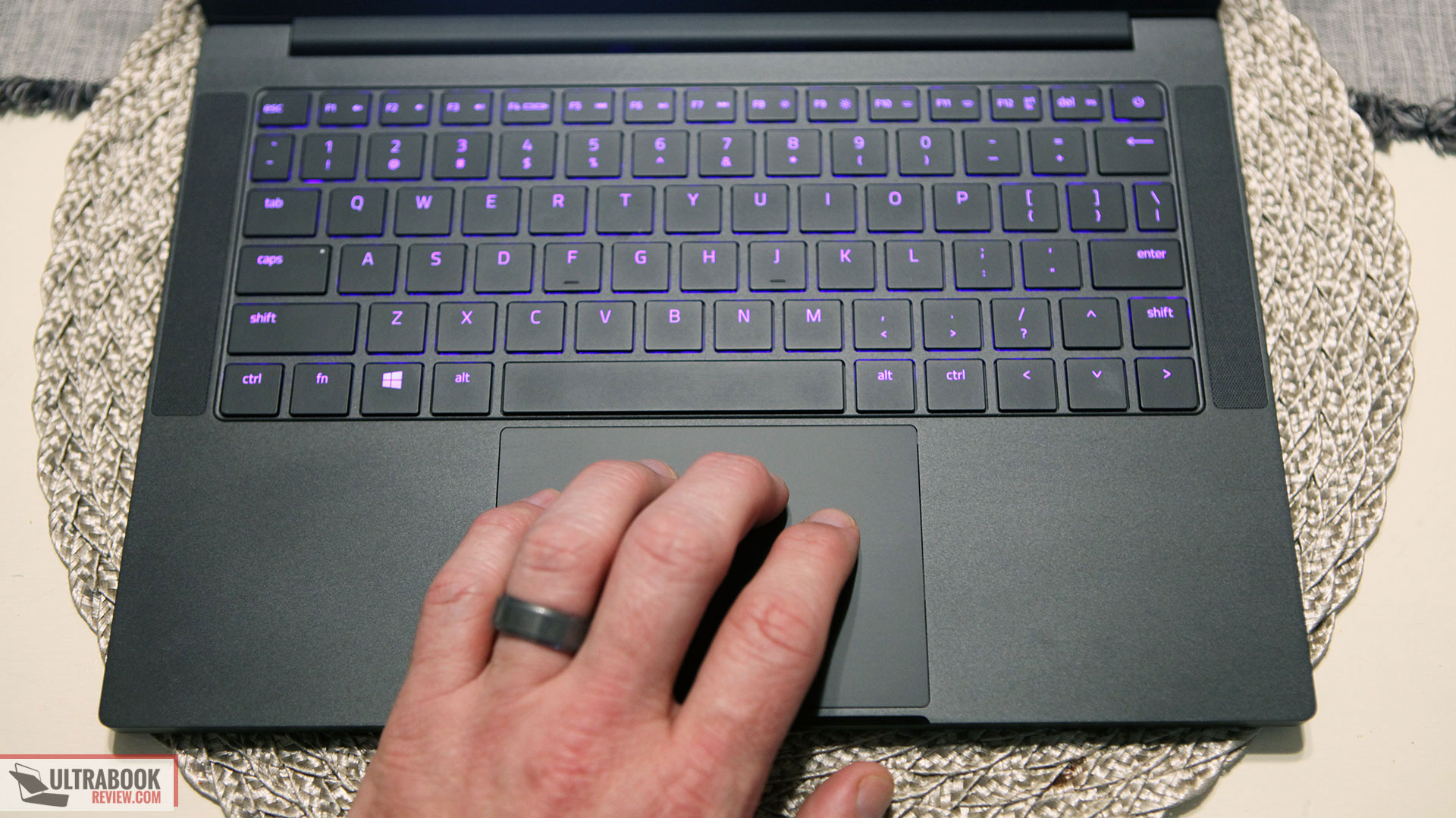
This has less space than 4k at 200% (normal for 15") or 1080p at 100%.
That's not my experience at all. For a while I was using a 27" 4k display at an effective resolution of 2560x1440. Obviously it wasn't as nice as 5k at 2x scaling would have been, but it was much sharper than a native 1440p display.
How does Windows fix this? I have used so many Win32 apps that are jus broken in one way or another on HiDPI displays, most shockingly Visual Studio, my experience of HiDPI on Windows is always worse.
Not sure why it is that way - it's just a matter finding a global pixel size, rendering all screens to these bitmaps and then 2D scaling them down to panel resolution.
Now, seriously, I find it hard to see the difference between 1080 and 4K. What would be nice is a good HDR display panel.
If the computer can only hold up a 1.5 hour battery it really doesn't satisfy the use case of a laptop, doubling the battery up to 99 wh really allows for a 3-4 hour minimum battery life and a longer battery life for non-GPU work.
But then, at the office, they got some HP Elitedesk minis, which are very small - but use regular desktop CPUs - and I bought one for myself. Now the laptop spends most of its days in a drawer because the desktop is much beefier and just as portable.
Of course, there are use-cases that a computer requiring an external screen and AC to even work can't handle. That's why I would be much more interested in having a "big" laptop, as in powerful CPU, tons of RAM, glorious screen. Could even be tempted to throw in a dedicated GPU. Don't care about it being 1 cm thin, featherweight and all-day battery. I do care about it not spinning up its fans when I'm just running vim in a console. I don't mind lugging around 2-3 kg of copper if that means the CPU can do a lot of work in silence.
I have a friend who's moving much more around, in meetings, etc. Her old macbook air is perfect for what she does. Also, the latest and greatest AMD wouldn't make a difference for her job, but she would clearly hate to lug around a heavy, bulky beast.
I think the issue is that, with today's technology, there's clearly no one size fits all. And there seems to be a trend in laptops to optimize for size and battery-life. Luckily, there are people for whom this is the right compromise. Don't know if they're the majority, but clearly there are other use-cases for which choices are more limited.
For Intel based laptops built in the last 10 years basically the only thing making a difference in battery life for laptops with same CPU is screen, and battery.
Everything else is almost the same everywhere. NVME SSD + WiFi will uniformly eat 2W. Power conversion will also eat at to 500-800mW. All other peripherals combined will unlikely to eat more than 1 watt, with exception of 1GB ethernet if working full speed.
From my desk, to my easy chair, to my bed, and back again.
Not hard on my battery (two of those have charge cables handy) but difficult to pull off with a desktop.
Now that you mention it, it's been more than a year since my laptop has left my home. Ouch.
Granted, becoming a parent also meant that things like watching a movie are “haha, I’m going to sleep” now, too.
I use a sit/stand desk but barely ever sit at it, so fifteen minutes of down time here and there helps.
On related note - does external display works without nvidia GPU? A lot of manufactures have lately decided to hardwire external HDMI connection to descrete GPU and hence it has been pretty painful to use NVIDIA powered Laptops on Linux. :(
- What kind of external webcam do you use? Does it have any problem with any video-conferencing software?
- Do you access any streaming service (with DRM)? Any issues?
- Any issues with drivers, returning from sleep/hybernation?
Thanks!
The nvidia driver is a bit of a pain to set up, especially if you're on wayland or if you want to use displays via USB C (reverse prime does not work yet due to an nvidia driver bug, so you need to use the nvidia gpu as primary when docked). Other than that, everything works and the community (arch wiki and rog-core) provide good support for getting everything up and running. A bit of configuration and a somewhat recent kernel will be needed (it's pretty new hardware after all), but it's not that hard if you either know Linux or are willing to spend some time. I'm running this config for 8 months now, so the situation from a fresh install might be even better.
Similar to the sister comment, I came from an XPS 13, but I'm happy. The laptop is a bit heavier, but in exchange you get a lot more power, far more RAM (up to 48GB), more ports and, subjectively, a dar better keyboard. Initially I wanted to stay with an XPS, but now I'm happy I made the jump.
EDIT: One unbelievably good point I initially forgot: You can run a VM with GPU passthrough on the laptop. If you need Windows with graphics performance, especially on the go, this is an incredible advantage.
Can you speak more to this? Does Pop_OS! configure this (more-or-less) out of the box? Would it work with any Nvidia card or are there restrictions?
I'm interested in such a setup and have done research from afar. I've developed on Linux for years, but have heard GPU passthrough can be difficult unless you wrangle drivers a bit.
EDIT: I'd also like to use it for CUDA in Linux. Do you have to reboot when enabling GPU passthrough (not a dealbreaker, just curious)?
Sure! Regards working out of the box, you'll probably have no luck with that. VFIO is still somewhat of a niche and VFIO on a laptop is a niche of a niche, so you'll need to expect some command line usage and a bit of config file editing. This being said, getting it to work is not too hard and, if you've done VFIO in the past, you should feel right at home.
For the initial setup, you can mostly follow the guide on the arch wiki [0]. You might need to adapt it a bit on ubuntu(-based) systems, but the major points are the same. The only difference to the usual setup is that you need to include an APCI-table [3] to get the laptop driver to work in the VM. This reddit thread [1] describes it quite well. The author of that thread also has a repo [2] where he published his files and on which I based my scripts on. Note that you need the usual CPUID work-around (see the "Error 43" section on the arch vfio page). Also, you'll need an USB C to HDMI/DisplayPort/... cable and a monitor for the initial setup, after that you can use a dummy plug [5] and looking glass (also described on the arch wiki) to use pass through without external monitor. The setup is also very stable for me, with the exception of the looking glass part - if you absolutely depend on the setup, having a monitor handy will save you a bit of headache, but you can always revert to a VM display in the worst case.
Regarding GPU support: It should support all GPU configurations, but you should check reddit etc to be sure. If you're talking about other laptops, the situation is a bit different. The big advantage of the G14 is (1) that the GPU has its own IOMMU group and is therefore easy to isolate and (2) that the display ports are well split between the two GPUs (the HDMI out and the internal display are connected to the AMD iGPU and the USB C DP-channel is connected to the RTX). This is rather rare, but makes setting this up (comparatively) easy. Note that the USB channel of the USB C out is not routed via the GPU, so if you're connected to a docking station, its display ports will be used by the VM, but the USB ports are on the host, still. This, however, comes with the drawback that you can not pass through an USB controller, as the groups for those do not work out. The ACS override patch (see arch wiki) might fix this, but unless you need to use audio interfaces, the "normal" USB redirector will suffice anyway.
Rebooting is semi-required. In order to change from VM to Linux and back, you'll need to [un-]bind the nvidia driver and switch to vfio-pci. Going from Linux to VM is only possible when nothing uses the nvidia driver, which either needs a restart of your display server or only using the iGPU for all apps (quite easy on sway/wayland, haven't tried on X). The reverse should work as well - the author of the reddit threads above has scripts to do so, but this did not work out for me. Leaving the vfio-pci driver for the GPU is not an option either, as this will prevent it from going into the low power state and therefore heat up the laptop and use up the battery. Because of this, I usually simply reboot. In summary, if you don't mind rebooting, having the GPU bound to vfio-pci via kernel parameter on a secondary boot option is by far the easier way :) But it should be possible without, it'll just be a bit of work.
To work with CUDA, you'll need to have the nvidia driver loaded, but you'll want to have that anyway to enable low-power states, as mentioned above. Using only the iGPU for display is possible in combination with CUDA, you'll simply need to stop your CUDA-apps before unbinding the driver. That's actually the setup I use, too :)
Hope this helps!
[0] https://wiki.archlinux.org/index.php/PCI_passthrough_via_OVM...
[1] https://www.reddit.com/r/VFIO/comments/hx5j8q/success_with_l...
[2] https://git.deck.sh/shark/g14gpu
[3] Since the original link is down for me: You need the ACPI table [4] and include it like this in the `<domain>`-part:
  <qemu:commandline>
    <qemu:arg value='-acpitable'/>
    <qemu:arg value='file=/home/cole/vfio/acpitable.bin'/>
  </qemu:commandline>
[4] https://git.deck.sh/shark/g14gpu/src/branch/master/acpitable...
[5] https://www.amazon.com/gp/product/B086MKR9WH - no affiliation, anything should work
* Locks up on suspend/resume
* Locks up when inserting an external USB-C monitor
* Requires a recent kernel to work properly (5.8 or later)
* Locks up without amdgpu.runpm=0 kernel command line
* dGPU can't be turned off, so increases power consumption
* Locks up with vsync on with the dGPU
* Kernel warning on startup, but doesn't affect stability
Besides these issues (which can be worked around), it's very solid.
It's worked great so far except for plugging into Dell's USB-c dock in the morning. This is a guessing game of which (of 3) monitors are going to work, often requiring opening/closing the lid a time or two or turning on/off screens.
Battery life is decent (VERY good if you turn down brightness and ssh to your work) and it's blazing fast. It does get egg cooking hot when unplugged and running the GPU (games).
Running Win10 currently, but trying to figure out which Linux is going to run with 3 monitors without doing hours of research. Suggestions welcome. Guess I'll try PopOS next.
A side note: the build quality was extremely disappointing, coming from an XPS 13.
Thank you for the pointer. I have the exact same laptop and tried Ubuntu on it - couldn't even change the screen brightness.
This would also work for Ubuntu.
It wouldn't turn me off from System76 if the hardware were good, but it's just... bad... real bad.
I've been using System76's PopOS with my Asus Zephyrus G14 (4800hs) as a daily driver and I really like it. (freelance/web)
The battery life is comparable to Windows (on integrated graphics mode, it has graphics switching available)at 7-10 hours with 70% brightness and balanced power settings using VScode and firefox.
The g14 has a 75wh battery vs the pangolin's 49wh, so I would expect less battery life from the pangolin despite the 4700u having a lower default tdp, since the 4800hs likes to sit at around 6-10 watts when doing non-intensive tasks anyway.
In 2021 I'm not missing any major programs. It's pretty incredible how much is cross-platform now.