I couldn't agree more. Whenever I see a title like this my immediate thought is "here we go again", but I clicked through anyway and was pleasantly surprised.
I've never used Windows 8 (or 7/Vista for more than a few minutes), but his criticisms seemed well considered. Macs can be more expensive for the same amount of CPU. I expected he was going to be talking about the Mac Pros (which are based on what, 2010 hardware?) so I was a little surprised to see he was talking about laptops.
The other thing that caught my attention was his note about trackpads. It seems like every review I read about a non-Mac laptop (which, to be fair, doesn't happen much) seems to mention how they are either terrible or just OK. Considering how important the trackpad is on a laptop, it always surprises me that this seems to continue to be an issue.
I remember years ago when Macs had 3" trackpads and PCs still had tiny 2" models. My MacBook Pro has a 5" pad, but I've seen 17" desktop replacement laptops with 3" pads.
Worse was that while Macs gained two finger scrolling (which was a great step up), may PCs gained "scroll areas", so that you'd lose a large fraction of the trackpad. The fact that part of it was horizontal scrolling (which is far less common) was even worse.
Are trackpads in the non-Mac world really that far behind, or is it just selection bias where the few laptop reviews I read only mention the trackpad because it's bad and the rest don't even discuss it.
On my laptop the touchpad does pretty much behave how I expect it to behave.
Also, a Netbook I bought 2008 or so had two-finger scroll. True, many backwards notebook manufacturers were behind the times but most just have been using the standard synaptics hardware I think. The windows drivers have the scroll area preconfigured by default but then the scrolling behaviour with the synaptics tool is pretty bad no matter how you configure it.
On linux synaptics touchpads are just fine (for me).
I know Unity is universally hated, but I am fond of its keyboard support. I rarely have to use my mouse and I using keyboard instead of trackpad in those situations saves my time.
I don't use all the gestures, just a few of them. But I've been doing it for so long they're second nature to me.
Two finger scroll one of the most important. I remember trying to use friend's PCs before it became common and being frustrated every time.
Two finger click works like a right-click, so I don't need to hold a key or dedicate part of my touchpad to right-clicking.
Three finger swipe left/right is amazing. It functions as a forward/backward gesture. In Safari it moves through history. In IntelliJ (my IDE of choice) it does the same thing, which is invaluable. I don't even know the keyboard shortcut in IntelliJ, it just works. And it works in Chrome. And Xcode. Having a universal gesture is fantastic.
Another favorite is four fingers up, which activates Expose. When you're moving between multiple applications and copying & pasting it makes makes things so much easier. I don't have to move my hand off command-C/V.
Four finger spread shows the desktop, which I use occasionally.
Double-tap with two fingers zooms in iOS style in Safari, which can e useful
Double-tap with three fingers opens the dictionary (& Wikipedia!) anywhere in the os on whatever you tap on. Reading an article and don't know what something is? Just double-tap three fingers and a little pop-up tells you. It's one of those functions that's always been there but it's so easy to get to I actually use it now.
That's what I use. There are a few more. Four fingers together opens Launcher. In Safari the zoom out gesture (pinch two fingers) brings up a tab-list, but I keep forgetting that's there since it's a relatively recent add. Four fingers down is Expose for one application, but I don't have much need for that. Two fingers from the right edge opens the notifications in Mountain Lion (which I don't really use).
If you're a multi-desktop person, four fingers left or right switches between desktops (including Dashboard) and every full screen application. This also works for app switching on iPad 2/3/4s.
Really it's like using command-c/v to copy and paste or command-tab to switch applications. It's quick and easy to do, and you quickly forget it's there and start doing it automatically.
Honestly I hate helping coworkers with a problem in IntellJ because they all use normal mice and I can't easily jump back to the last place I did an edit (even in another file). I'm working on helping them and then all of a sudden there is a brain stall while I realize that I can't just do a swipe and have to think to go click on the tab I want.
I feel handicapped without them; like something is missing. I remember how much I liked getting a button on the side of my MS IntelliMouse I could use to go back when surfing, this is like 100x that.
Edit: It just occurred to me that these aren't default gestures. A few of them changed in Mountain Lion and I set my Macs back to the way Lion had them, so you may have to experiment.
two finger scroll and two finger right click is almost universal now. When inside a browser, I rarely use the mouse scroll and prefer to use spacebar or up/down keys to scroll for granularity and I know where each action is going to land me (spacebar = page down, up/down key = just one line)
For forward/back I use Alt + right/left arrow. This works in browser, file browser, Eclipse. I suppose this would work in IntelliJ as well. In Eclipse, This doesn't take to the last place you made edit at, but the last place you had focused at (across files). Besides there is a shortcut Ctrl + q to go to the last place of edit (across files) in Eclipse. There are equivalent shortcuts in other editors that I have used.
There is no equivalent of Expose in Ubuntu. But how does it differ from using Alt + tab? When all the windows are exposed do you have to move your mouse pointer to the window you want to focus on and four fingers again? I think that's how I remember it. I love Ubuntu's Alt + tab and Alt + ` to be honest. You can also use left/right arrow keys with these two options. Granted, I do have to take my hand of Ctrl if I am doing copy/paste.
So three finger double click seems to be the only action I see myself to be missing that I would use.
As I programmer, I am typing for most of the time. So honestly, I think keyboard shortcuts work faster as I don't have to move one of my hand everytime. This is specially true if you are working on a desktop as you really have to move your hand to the magic mouse. YMMV though.
One of the things I hated about Mac was there are no equivalent of 'Super' key shortcuts which are present on both Windows and Ubuntu. Like Super + 1 launches the first application in my doc. This is much faster than opening spotlight and launching an application from there using a keyboard. Also, some of the shortcuts are not universal. Chrome used Ctrl + tab to change the tab and Firefox used Cmd + tab (I suppose?). Being from Windows/Ubuntu background, it was really frustrating to get used to the Cmd key at some of the places.
One more mouse gesture related thing I would like to add is that I love FireGestures add-on on Firefox. If I am just reading news/sites and not typing, I use my mouse and FireGestures + mouse works great. Firefox is my primary browser and I didn't find any equally good extension for Chrome.
The nice thing about forward/back gesture is that it works almost everywhere, and I don't have to learn a different keyboard shortcut for each program. I accidentally discovered it worked one day and it stuck. It had never occurred to me to go searching for a keyboard shortcut to do it.
Expose is quite nice. In OS X command-tab switches between open applications (not windows, applications). There is no list displayed like Windows XP had. When you trigger Expose, every open window is automatically arranged on screen. You just click it with your mouse and everything moves back into place with the window you clicked now at the top.
I use command-tab when I'm in keyboard mode (such as coding) and Expose when in mouse mode (surfing, browsing email, etc).
I think you're right bout the Super-1 shortcuts. I don't think there is anything like that in the Mac. I usually have every program I'm using open, but when I need something else I just use Spotlight. Command-space opens it (I believe that was the old key combo, which I set Mountain Lion to use), I type a few letters, and hit enter. There are other programs that are faster or more powerful (Quicksliver and Alfred are popular), but Spotlight was good enough.
Tab switching doesn't seem to be standard. I know that in Safari the key commands are Command-[ or Command-], but I don't know if that works in other programs. When I first switched it didn't take too long to learn when to use command. But I also used Macs when I was a kid, maybe that helped.
One pleasant side-effect of the way the Mac has evolved is that the keyboard shortcuts work perfectly with Terminal. Both control and meta ('option' on the keyboard) work exactly as you expect. Control-c quits programs, control-d sends end-of-line, emacs is easy, etc. But the command key isn't used by any unix program I know of.
That means it's free to make life easy. Copy and paste are still command-c and command-v. You can clear the terminal with command-k, and standard window management things (-h for hide, -tab for program switch, -` for window switch) all work without interfering with whatever program you're running.
It's a total accident of history, but it worked out great.
Less important if there is a trackpoint mouse, something near and dear to my heart. I've disabled the trackpad on my latops; they don't suit me and end up getting in the way. I get much better behavior using the trackpoint mouse.
YES. I have a Thinkpad T530 from 2011 and a MacBook Pro from 2009 and the older Mac's trackpad is so much better.
I always get a mild migraine trying to remember which combination of shift, function, control, alt/option and command triggers an occasionally used keyboard shortcut.
Anyone know the thinking behind this? Is it for historical reasons? I've googled over the years with no success.
The answer is, "sure, I know the thinking behind this".
I use Awesome WM. And I have configured practically every program I use. So, window management -> Windows (Super) modifer; editors -> Ctrl; Menubar -> Alt (can't change that); Funny chars -> AltGr (US International keyboard); Fn -> configured to whatever icon I see on the keyboard
It's just that when I moved to the Mac platform years ago, I found the general simplicity quite refreshing (yes, even the lack of a right-mouse button!) and was surprised that they hadn't done anything about the numerous keyboard modifiers.
So in fact, it is simpler because you don't have Home/End/PageUp/PageDown/Insert/Delete keys. It also avoids overloading the same key with commands and editing shortcuts.
It's not simple: it has fewer keys, but that makes it more complex not less, and more prone to causing carpal tunnel syndrome (Command-shift-right arrow to select till the end of the line? Are you kidding me?).
Actually, I purposely lied. It's Ctrl-shift-right arrow for end of line, and Command to go to the end of the file.
Like I said, not simpler
No, Shift-Command-Left/Right selects to the beginning/end of line respectively. It's been that way since at least System 6. So has using option-arrows for moving by words. I don't know what control does—I don't think it's standard. I think you might be thinking of Command-Up/Down which go to start/end of file respectively.
And I frankly don't find Command-shift-arrows hard to chord at all (pinky on shift, thumb on command). I've been doing it for 20+ years and don't have any carpal tunnel problems. Or course, I'm also a long-time Emacs user so I'm used to things like C-M-s.
For example, ⌘ + ⇧ + 3 takes a screenshot and saves it on the desktop. What if you wanted to save it to the clipboard instead? You hold down the Control key, not the Option key, which to me would've been the logical choice here.
BTW I fully realize that it is probably too late to remove any modifiers, but one can always hope :)
And they're overloaded to hell and back on the laptops: delete as backspace/fn-delete as delete, Cmd-up/down arrow + Fn-up/down arrow...
Pretty sure there isn't an Insert, though.
Ugh, talk about a worthless key. I used to physically remove that key on my full sized keyboards when I used OSes that respected it.
During my Windows days, I had never wondered why there were so many keyboard buttons - my MS Intellimouse had 5 buttons all on its own :)
The two are very closely related.
Even though Jobs claimed for years that a secondary click was unnecessary, the market disagreed and very soon, applications started offering a context-sensitive menu, but since you only had one mouse button, you had to use a modifier to simulate that right click.
Jobs never changed his mind, one of the things where he remained wrong until the very end (Macs never shipped with two button mice nor trackpads).
The thing I like about the "one button" philosophy is that it meant that you never needed to use the second button to access something. There was always a menu or some other way, the right-click was just a shortcut (so I've heard). There were things in Windows and common applications that couldn't be accessed without a right click. It's also less confusing for new computer users.
Of course today, that's all basically gone. I'm sure some people use one button mice and are happy, but everyone I know ends up with a two button mouse or enabling the right-click function on the mighty mouse/trackpad. And it wouldn't surprise me if there were right-click only functions.
http://upload.wikimedia.org/wikipedia/commons/7/76/Apple_Mac...

It's remarkably simple compared to a modern one, Mac or PC. I believe the smaller key next to the Command key is Option. I think Option would have served as a way to access more obscure keyboard shortcuts and to enter "special" characters, as it is today, although I could easily be wrong going that far back. Note the total lack of a Control key, though, as well as fairly basic amenities like arrow keys.
By the time of the Mac Plus, there was a numeric keypad and arrow keys, but still no Control:
http://en.wikipedia.org/wiki/File:Apple_Macintosh_Plus_Exten...

The Control key showed up with Apple Desktop Bus keyboards:
http://en.wikipedia.org/wiki/File:Apple_ADB_Keyboard.jpg

Note the "proper" placement of Control and Caps Lock, unlike the universal wrongness we see today. I honestly do not know what purpose it served at the time. The main use of Control on the Mac, activating contextual menus in the absence of a right mouse button, didn't show up until about a decade later. My recollection from this period was that Control was very rarely used other than for things like talking to other systems that cared about those sorts of things through terminal emulators.
You're right about the control key. IIRC back in the day it was used to actually activate "control" characters that instructed the computer to do something (I suppose roughly equivalent to the Fn key today). It's a bummer that folks started mapping it to other things and it stayed on, vs. being merged with the Alt/Option key.
- option was solely for entering text, not for commands.
- there also was a separate numerical keypad (http://www.inanis.net/cm/index.php/Image:Macplus-p1_front.jp...) that daisy-chained into the original keyboard.

- control was indeed added for terminal emulators, and wasn't to be used for anything else.
I know it is a matter of habit - but I never did consciously make an effort to learn the keys on Windows and I still struggle on the Mac after 3 years.
If you want to just redefine the meaning of that button to be "maximize," you can use something like Right Zoom: http://www.macupdate.com/app/mac/30591/right-zoom
In my case, I just use Slate and have Shift+Cmd+Enter bound to maximize the window. Then I've got Shift+Cmd+(H,J,K,L,Y,U,B,N) bound to what you'd expect based on the vim keybindings. That's just the absolute beginning of what is possible with Slate; I'm sure there's vast potential I'm not yet tapping into.
Mac OS is doing the redefining, here. To more than 90% of desktop users (Windows users), "maximize" means "take up all the screen".
Mac OS came up with this weird notion that it should mean something different, hence all the complaining.
Microsoft examined this problem in the 90's and reached the conclusion that the "standard" state made little sense: to a user, a window has only two states, "full screen" and "the size they resized it to".
http://www.guidebookgallery.org/pics/tutorials/macplus1988/f...

Hint: the name is given at the bottom. Where did you get this crazy idea?
I also notice with some humor that back then, "Zoom" enlarged the window to full size :-)
Though I still prefer the initial back and forth behavior used by default with cmd-tab for programs.
I constantly get frustrated because it's so hard to get windows of different applications side by side. Cmd-tab raises all the windows of an application above everything else, so I can't easily pull windows of two different applications to the top at the same time, unless I carefully apportion screen space so nothing is overlapping. For example, I often like to fill the screen with two terminal windows side-by-side, but then every time I cmd-tab to either terminal window Chrome gets hidden so I can't see what I was researching on the web.
For me, kind of annoying after using windows and Putty for remote servers where control is always control.
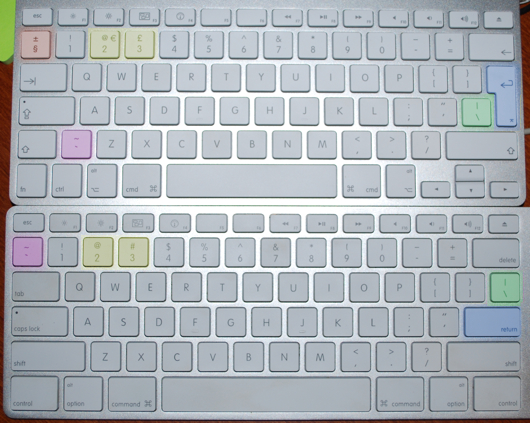
What I always found bizarre (and maybe there's a historical reason for it I don't know about) but on the UK Mac keyboard the "option" key doesn't read "option" -- it just has the option symbol on it. I always imagined this must be very confusing for Mac new-comers in the UK reading advice online to press "option+whatever" and having no idea what key to press.
Image here: http://static.paulboxley.com/mac_keyboard_differences.jpg
[1] https://upload.wikimedia.org/wikipedia/commons/6/68/Apple_II...

How did this fellow spend six years using a Mac without ever realizing that "command" is that flower-looking thing? And, of course, "alt" and "option" are the same thing.
Sounds like he never really adjusted to the Mac and remained a Windows user at heart, and is now going back to what he knows. Nothing wrong with that! And he presents it as "what I had trouble with", not "what's wrong with the Mac", which is commendable.