News for hackers. Stuff that matters.
Re:Clear Your Terminal in Style by _eigenfoo on Thursday March 05, 2020 @07:33AM (#22493000)
I've just used alias c=clear in my .bashrc and never looked back. Not even Ctrl+L feels as convenient as c+Enter
Re:Clear Your Terminal in Style by adren123 on Thursday March 05, 2020 @07:41AM (#22493033)
the full monty: alias c='echo -e "\033c" ; stty sane; setterm -reset; reset; tput reset; clear'

doesn't only clear the screen, but also escape any "broken" terminal configuration such as output of a binary on the tty

Re:Clear Your Terminal in Style by JdeBP on Thursday March 05, 2020 @12:16PM (#22495613)
One can spot cargo cult command-line use when two pairs of the commands overlap functionally, and another triplet is the same program by different names.

Also note that RIS is a bad idea, discouraged since 1983 I recently discovered, although DEC did not think to tell people outside DEC this for half a decade. Use DECSTR.

Re:Clear Your Terminal in Style by Fnoord on Thursday March 05, 2020 @10:01AM (#22494032)
setterm does not work on macOS. I find reset(1) working fine. It already does clear, too.
Re:Clear Your Terminal in Style by JdeBP on Thursday March 05, 2020 @12:19PM (#22495646)
One of these days, someone will take my portable setterm, which compiles fine on FreeBSD, and compile it on MacOS. (-:

* http://jdebp.uk./Softwares/nosh/guide/commands/setterm.xml

Re:Clear Your Terminal in Style by kodachi on Thursday March 05, 2020 @07:58AM (#22493133)
> Ctrl+L feels as convenient as c+Enter

I learned to hit Ctrl with my palms, and never looked back. Do you use your pinky? If so, I agree c+Enter is more convenient than ctrl+L.

Re:Clear Your Terminal in Style by apocalyptic0n3 on Thursday March 05, 2020 @09:27AM (#22493722)
It never even occurred to me to do that but trying it now, I don't think it's feasible for my hands. Either my palm mashes CTRL, ALT, and CMD (and sometimes FN and Shift) or I have a super awkward angle to get to the C key. It seems much easier to just drop my pinky down for half a second.

EDIT: After a suggestion from another user, I just remapped my Caps Lock to CTRL. That seems a lot easier to deal with. I'll try that for a bit and see how it goes.
Re:Clear Your Terminal in Style by johnisgood on Thursday March 05, 2020 @05:00PM (#22498819)
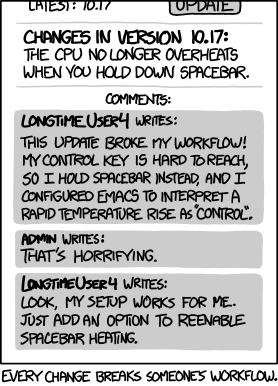
I use my left pinky to press Ctrl, and I use the right hand for L (index finger), so it makes no difference whether I press L or Enter using my right hand. I would probably use the right pinky for the Enter key. Works either way to me, but I am used to pressing Ctrl-L (left pinky for Ctrl, right index finger for L).
Re:Clear Your Terminal in Style by bingerman on Thursday March 05, 2020 @07:54AM (#22493103)
I have mapped capslock to ctrl (esc if used without modifiers) which made ctrl+L extremely comfortable for me.
Re:Clear Your Terminal in Style by dmitshur on Thursday March 05, 2020 @08:15AM (#22493233)
I don’t quite understand why. With one hand or two?
Re:Clear Your Terminal in Style by bingerman on Thursday March 05, 2020 @11:58AM (#22495397)
Left pinky for ctrl (capslock) and right ring finger for L. Works incredibly well for my hands (a quality keyboard helps too). The capslock mapping is obviously meant for vim but works great for many shortcuts like this (ideally there would be a second ctrl/esc and other modifiers to operate with right pinky comfortably, starting my first custom build soon...).
Re:Clear Your Terminal in Style by Piskvorrr on Thursday March 05, 2020 @08:54AM (#22493468)
Now you have Ctrl on home row, instead of two rows down.
Re:Clear Your Terminal in Style by microcolonel on Thursday March 05, 2020 @10:05AM (#22494057)
On a standard PC keyboard, I just use my palm to hit Ctrl (part of why I detest keyboards where Left Ctrl is not at the bottom left corner.
Re:Clear Your Terminal in Style by ascagnel_ on Thursday March 05, 2020 @10:10AM (#22494112)
Some smaller keyboards (including laptops) make the control key small or add an "Fn" key to the bottom-left corner (Apple does this). I tend to hit Ctrl with my left hand, so mapping caps lock to Ctrl makes it more reliable to hit.
Re:Clear Your Terminal in Style by holtalanm on Thursday March 05, 2020 @02:32PM (#22497195)
Re:Clear Your Terminal in Style by pletnes on Thursday March 05, 2020 @09:40AM (#22493837)
Ctrl+L works when a program is running. Clear does not.
Re:Clear Your Terminal in Style by laumars on Thursday March 05, 2020 @10:37AM (#22494396)
> Ctrl+L works when a program is running. Clear does not.

I can't see how because ctrl+l is a $SHELL / readline shortcut rather than one defined in the terminal emulator. Once you run a program you're forking STDIN control to another process so you'd have to wait for the $SHELL / readline prompt again just like you would if you typed a command / function / alias into the command prompt.

Re:Clear Your Terminal in Style by lub on Thursday March 05, 2020 @11:23AM (#22494918)
Is ctrl+c handled; by the terminal emulator?

ctrl+l allows to clear when the prompt is non-empty, maybe parent poster meant that

Re:Clear Your Terminal in Style by laumars on Thursday March 05, 2020 @11:43AM (#22495199)
I'm not 100% sure how ctrl+c (and ctrl+z) are handled but I do know they're edge cases because they're managed by the kernel and are not re-definable.
Re:Clear Your Terminal in Style by Pete_D on Thursday March 05, 2020 @01:34PM (#22496496)
The terminal can optionally catch some characters and convert them to signals. By default, ^C sends SIGINT, ^\ sends SIGQUIT, and ^Z sends SIGTSTP. Programs can disable that for their own purposes (stty -isig) and you can rebind them to other characters if you want (stty intr, stty quit, stty susp) but I don't know why anyone would these days.
Re:Clear Your Terminal in Style by hnlmorg on Thursday March 05, 2020 @02:46PM (#22497358)
In Linux and UNIX you enable or disable use of ctrl+c (effectively setting the tty into a raw mode) via syscalls against the tty file descriptor - it is not handled by the terminal emulator at all (in fact if you read the man page for `stty` you'd see it's changing the your terminals fd and not the terminal emulator).

Sure, theoretically terminal emulators could capture and even rebind those keys via the APIs of whatever graphical toolkit they're built in....but if you wanted to rebind SIGINT to another key in the terminal emulator, that terminal emulator would still have to transmit ^c to the tty.

As for rebinding those keys in the kernel, Linux simply doesn't support doing that and nor does it support binding other keys to different signals. In fact I've tried to do this on a tool I was working on to emulate BSD's SIGINFO in Linux (turned out not to be possible) as as well part of the job control (SIGSTSP et al) support in my $SHELL (https://github.com/lmorg/murex).

This is also why you can throw signals over an SSH (or other remote shell) session when the terminal emulator itself would have no knowledge of the commands running on the remote host.

Re:Clear Your Terminal in Style by Pete_D on Thursday March 05, 2020 @03:40PM (#22497931)
Good point, I should have said TTY driver (all my information is from half-remembered reading of https://www.linusakesson.net/programming/tty/index.php, any mistakes are my own).

With respect to rebinding, what is "stty intr ^D" doing if not rebinding the interrupt character to ^D?

I feel your pain about not having SIGINFO though.